Whatever’s playing, right there.
NotchPlayer puts Spotify and Apple Music in your MacBook’s notch: the cover, a waveform that moves with the song, and the controls when you hover.
NotchPlayer puts Spotify and Apple Music in your MacBook’s notch: the cover, a waveform that moves with the song, and the controls when you hover.
The cover sits on one side of the camera and the music moves on the other. Nothing to click, nothing in the way.
Skip, scrub, shuffle, repeat. The + takes you to the song in Spotify, ready to add to a playlist.
One swipe over: how long you listened today, this week, this month, and to whom. Counted on your Mac, never sent anywhere.
On a MacBook without one, it sits in the menu bar as a small black pill and opens the same way.
Open the notch, then play with it, or use the controls. No sound, no account.
Four real songs. The waveform is drawn to the beat; this page plays no sound.
Or with Homebrew: brew install --cask arvxanand/notchplayer/notchplayer
This looks like an Intel Mac. NotchPlayer needs Apple Silicon (M1 or newer), so it won’t open here.
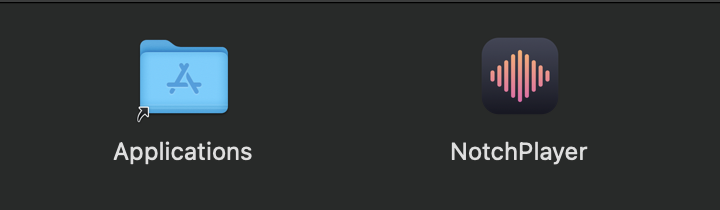
Open the download and drag NotchPlayer onto the Applications folder beside it.
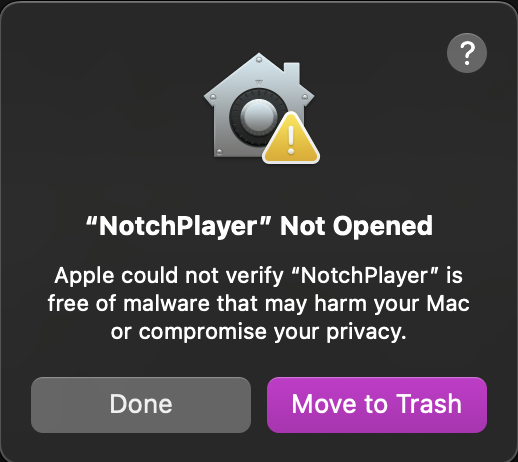
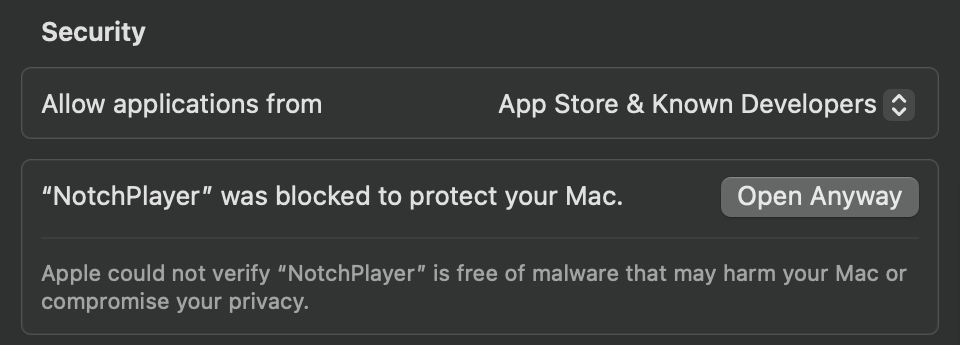
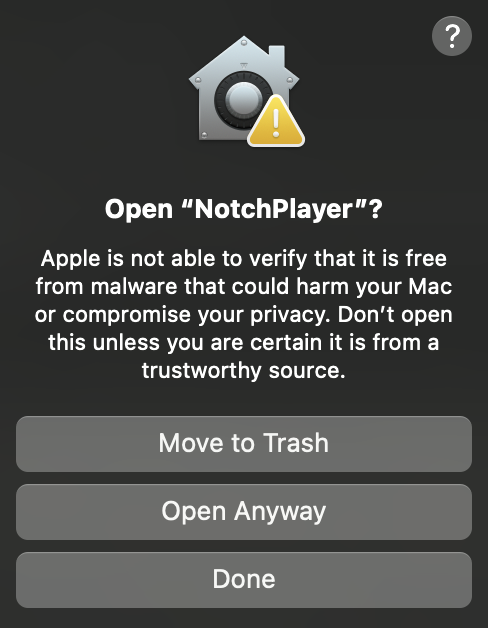
NotchPlayer is free and isn’t signed by a paid Apple developer account, so macOS stops it the first time. You do this once per download.
Yes. On an Apple Silicon Mac without one, it draws a small black pill in the middle of the menu bar that opens the same way. It only draws on the built-in screen.
No. NotchPlayer needs a Mac with Apple Silicon (M1 or newer) and macOS 15 or later.
Nothing about you or your music. It has no account, no analytics and no server. It fetches album covers, opens Spotify’s public page when you click a title, and once a day checks for a newer version, which you can turn off.
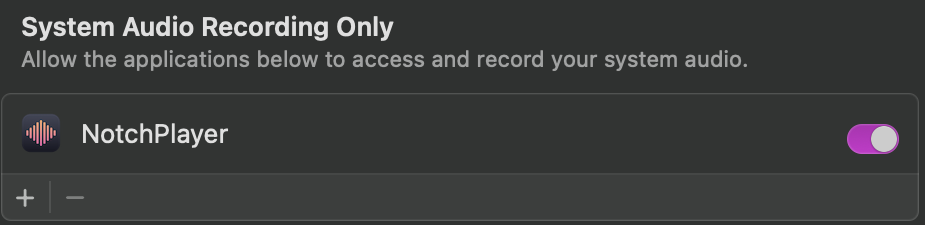
No. System Audio Recording is the name macOS gives the permission. NotchPlayer only hears your music app’s output, never the microphone, and only while a song plays. You can turn it off in System Settings and the bars switch to a made-up animation.
Open NotchPlayer again and click Done, then look again: the button shows for about an hour after macOS blocks the app. Still nothing? Paste xattr -dr com.apple.quarantine /Applications/NotchPlayer.app into Terminal and press Return, then open it again.
Yes, and open source.